

How to Debug Salesforce Automation Event-Triggered Flows
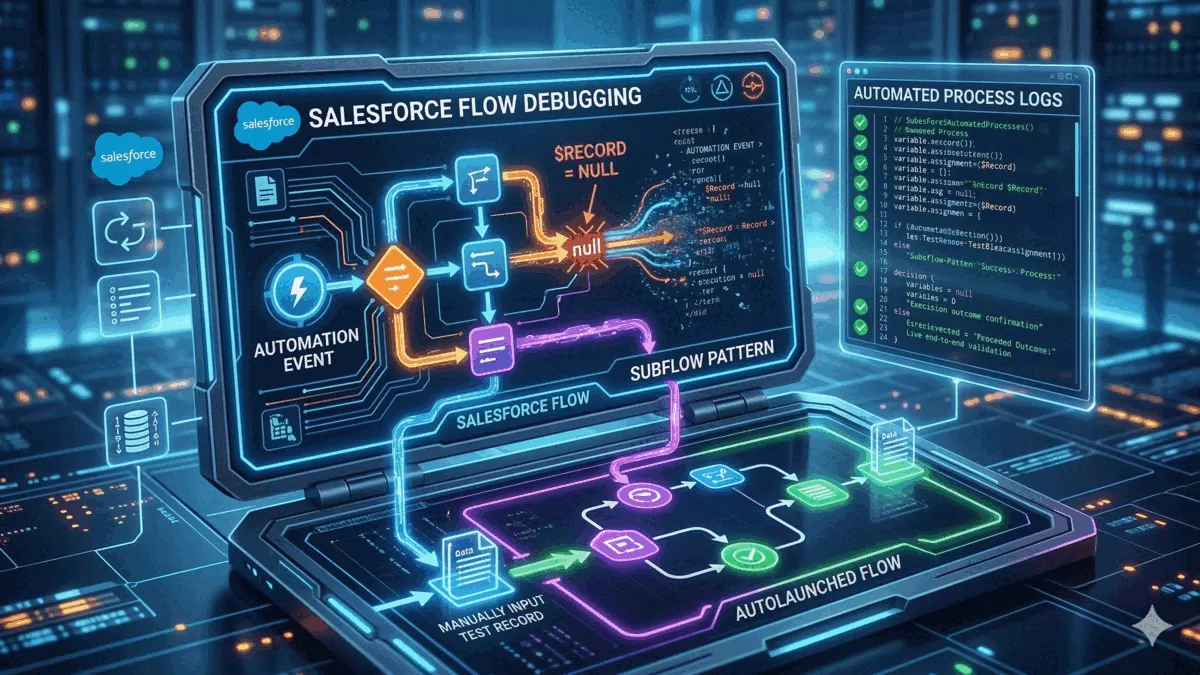
A practical guide to debugging Salesforce Automation Event-Triggered Flows when $Record is null, including the subflow pattern and live end-to-end validation with Automated Process debug logs.
You’ve done the heavy lifting. You’ve built a complex Automation Event-Triggered Flow based on the live changes to Prospect, Lead, Contact or related objects. The logic seems flawless and you’re ready for testing.
But then you click Debug in Flow Builder and the first thing you see in the execution log is a crushing sight:
$Record = null
You cannot confirm your logic is correct: no attribute is passed to Decision splits, no condition checks or assignments performed based on triggering record. If you are experiencing this, you aren’t doing anything wrong. You’ve run into a platform limitation.
But first things first.
What is an Automation Event-Triggered Flow
Automation Event-Triggered Flows represent a significant step forward in uniting the long-standing power of the core Salesforce platform with evolving capabilities of Marketing Cloud Next. They allow for setting up a flow-based automations that fire each time a customer performs one of the predefined sets of actions, e.g. submits a form on your website or subscribes to your emails.
One of the recently added events that can trigger this type of flow is Prospect, Lead, Contact, or Related Record Change Automation Event. It allows for designing near real-time responses to events related to customer records and records related to customer records.
If you want to learn more about how to set up this type of flow before proceeding to its, I recommend reading through the resources below:
- Salesforce Help: Prospect, Lead, Contact, or Related Record Change Automation Event
- The Agentic Marketer: Individual-Related Record Event + Apex Personalization
- Marketing Cloud Tips: Run Event-Triggered Flows When CRM Records Change
Why Debug Fails for Automation Event-Triggered Flow
For “traditional” Salesforce Flows (like a Record-Triggered Flow), during debugging you simply select a triggering record and… usually that’s it. You take a look at how flow is executed, which path was taken and whether your logic and assumptions are correct.
In the marketing-related Automation Event-Triggered Flows, it simply doesn’t work. The $Record global variable (which should hold the triggering Prospect, Lead, or Contact data) is instantiated as null. As a result, you cannot safely test, e.g. whether this cool decision split you designed based on the Order status from triggering record actually works.
But worry not, there is a workaround.
How to Debug Automation Event-Triggered Flow
To test your automation logic, you must decouple it from the event trigger in Automation Event-Triggered Flow.
Step 1: Create an Autolaunched Flow
Take all the logic you intended to have in your parent flow (actions, CRUDs, decisions, etc.) and move it into a new, standard Autolaunched Flow (No Trigger).
Step 2: Define a Record Input Variable
In this new Autolaunched flow, create a record variable designed to hold your primary record (e.g., var_IncomingOrder for the Order object). Crucially, ensure that Available for input is checked.
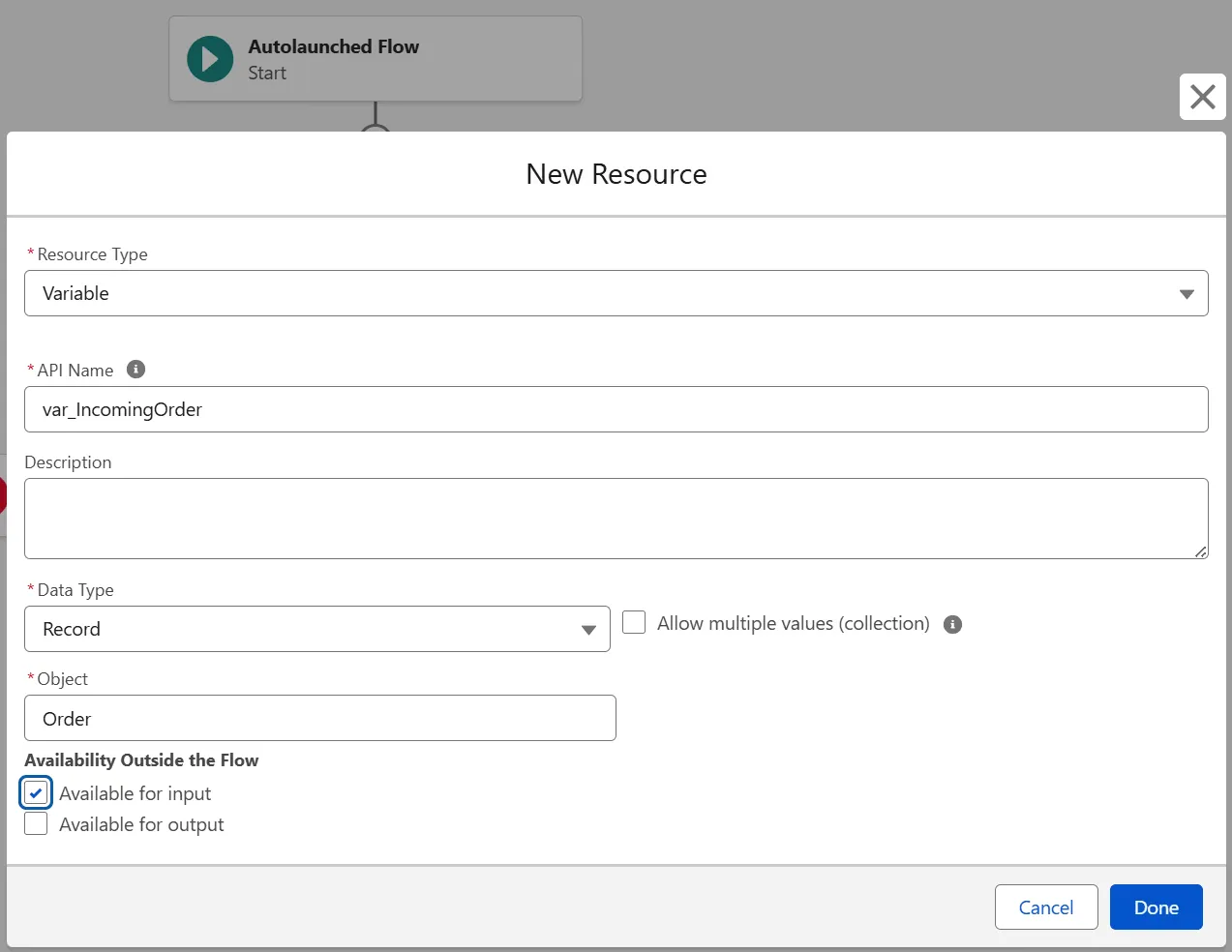
Flow input variable setup (Autolaunched Flow)
Step 3: Debug the Autolaunched Flow DIRECTLY
This is the key step. You must completely ignore the parent flow’s debug button.
Open your subflow (the Autolaunched Flow you created in step 1) in its own Flow Builder window. Click Debug from inside this flow. The configuration screen will open and it will prompt you to manually select a specific test record to populate var_IncomingOrder.
Select a sample record and click Run.
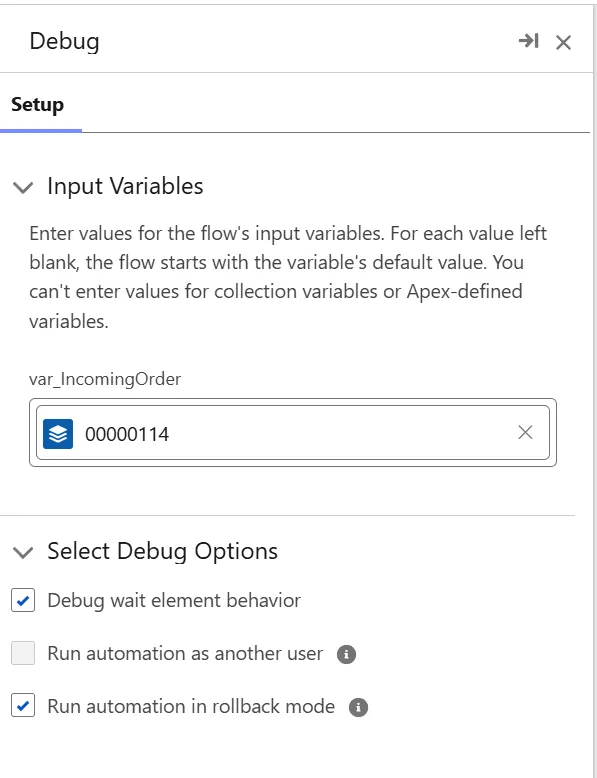
Debug run configuration populated with a test record
The flow will execute perfectly, allowing you to validate your desired outcomes.
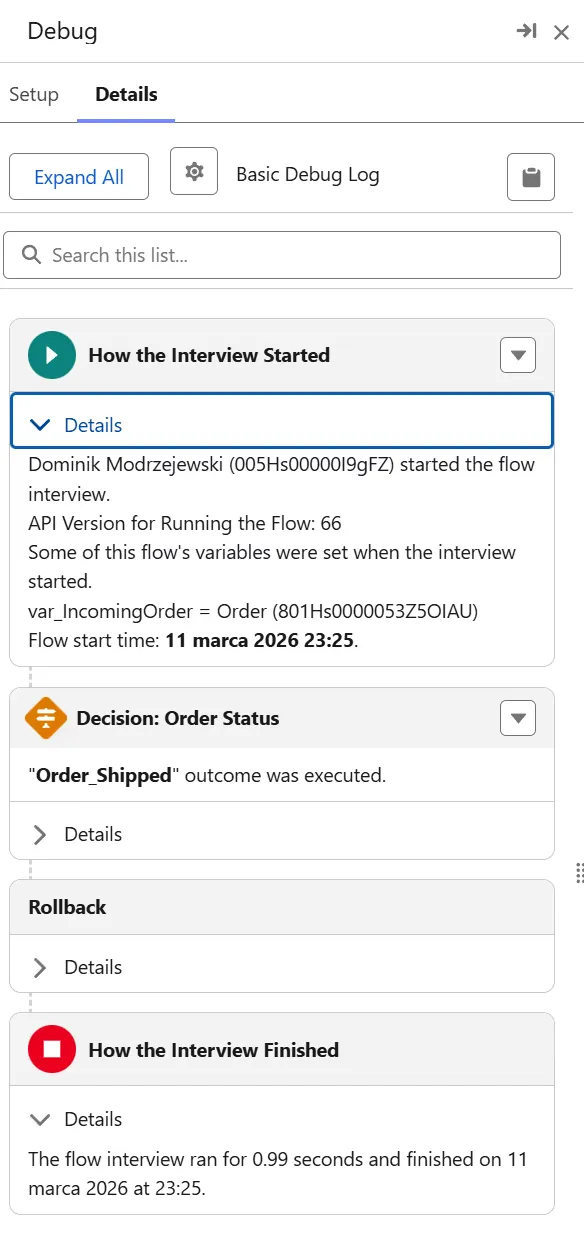
Successful debug run based on a test record
Workaround Limitation
Before we wrap it up, you need to know there is an important limitation to this workaround. The standard Autolaunched Flows don’t have access to the new interesting marketing-related flow actions (like “Send Email Message” or “Consent Request”) and activities (e.g. “Path Experiment”). Hence, this way you can only test such things like decision splits, CRUD operations, assignments, loops or waits.
For testing and debugging the MC Next-specific marketing actions and activities, you’ll unfortunately need to activate the flow straightaway without debugging and trigger it by updating the chosen record in Salesforce core. To limit the potential undesired impact, do it in a sandbox and - if you’re testing sendouts - double (or triple) check which email address is tied to the triggering Prospect, Lead or Contact record.
Further reading
Recommended on similar topics
If this article was useful, these posts cover adjacent patterns, implementation details, and related architecture decisions.
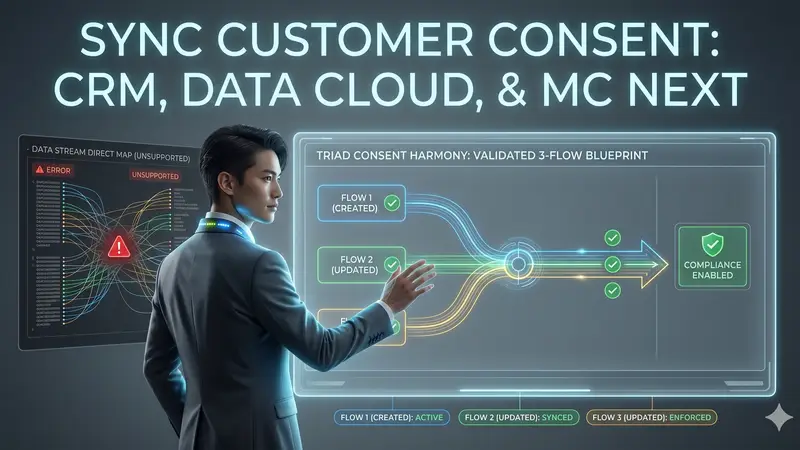
How to Keep Consent in Sync between Salesforce, Data 360 and Marketing Cloud Next
Blueprint for a validated, 3-flow system to achieve customer consent synchronization across Marketing Cloud Next, Data 360, and Salesforce CRM
Read About How to Keep Consent in Sync between Salesforce, Data 360 and Marketing Cloud Next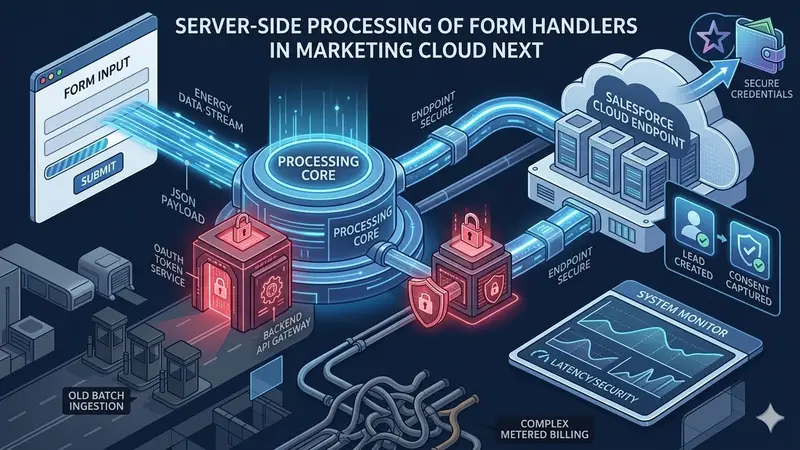
Server-Side Processing of Form Handlers in Marketing Cloud Next
A practical end-to-end guide to processing external form submissions through your backend and securely sending them to Salesforce Marketing Cloud Next Form Handlers with OAuth client credentials.
Read About Server-Side Processing of Form Handlers in Marketing Cloud Next